


Comprend la mission
L’Agent combine vos consignes et vos sources au lieu d’appliquer une conversion automatique.
Ajoutez les sources nécessaires (des photos de produit ou une archive) et précisez vos attentes. L’agent prépare le livrable suivant : des images produit cohérentes prêtes pour les marketplaces, que vous pouvez vérifier et affiner.
Fournissez des photos de produit ou une archive et les informations importantes pour cette mission.
L’Agent analyse les sources, suit vos consignes et prépare des images produit cohérentes prêtes pour les marketplaces.
Contrôlez le livrable, demandez des modifications dans la même conversation, puis téléchargez la version finale.
Ouvrez le fichier complet ou parcourez les pages clés ci-dessous.
Ouvrir le fichier complet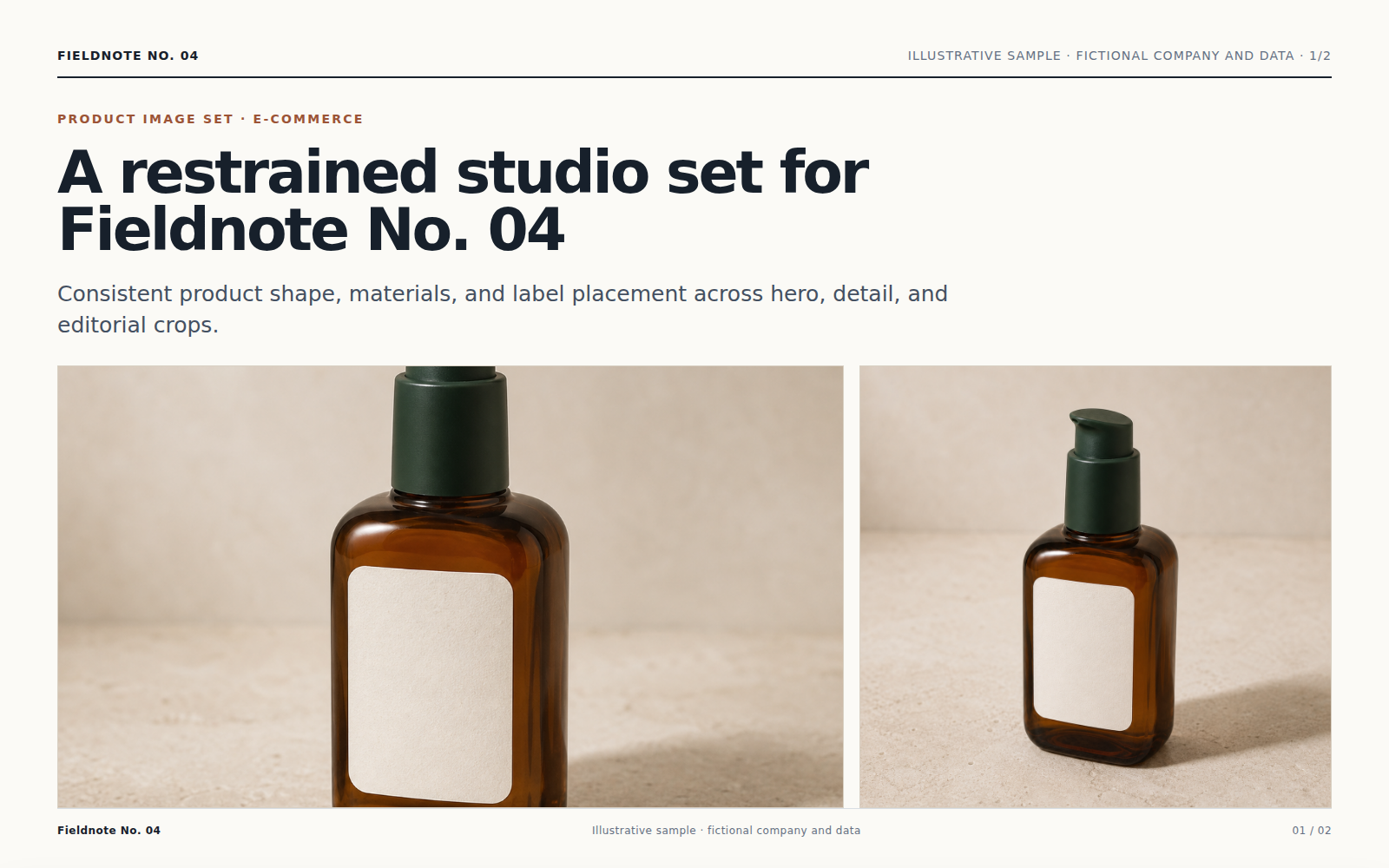
L’Agent combine vos consignes et vos sources au lieu d’appliquer une conversion automatique.
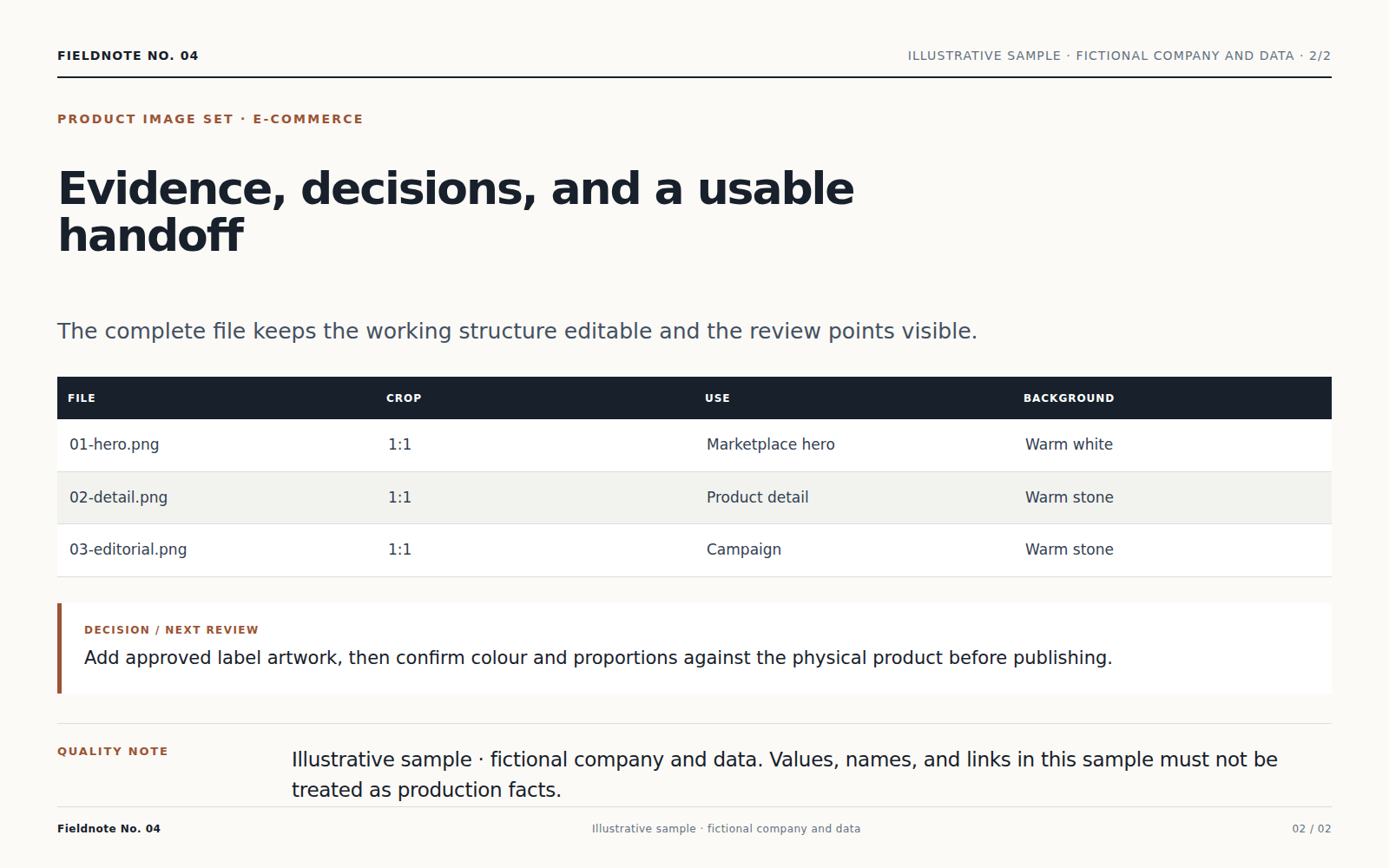
Les éléments importants restent liés aux contenus fournis et les incertitudes sont signalées.
Vous obtenez des images produit cohérentes prêtes pour les marketplaces que vous pouvez vérifier, télécharger et améliorer sans repartir de zéro.
Commencez par des photos de produit ou une archive, puis indiquez le public, l’objectif, les contraintes et le format souhaité.
Il lit les sources, organise le travail, utilise les outils adaptés et prépare des images produit cohérentes prêtes pour les marketplaces pour validation.
Oui. Examinez le livrable et demandez une explication ou une modification avant de l’utiliser.
Oui. Dans la même conversation, ajustez le fond, la formulation, le périmètre ou le format.
Poursuivez le travail sur les mêmes sources sans les déplacer entre plusieurs produits.
Pour création de logo, ajoutez un brief de marque et une direction visuelle. L’agent Vecbase prépare un système de logo modifiable à vérifier et modifier.
Pour création de landing page, ajoutez un brief produit et des éléments de marque. L’agent Vecbase prépare une landing page prête à publier à vérifier et modifier.
Pour création de portfolio, ajoutez des projets, des études de cas et des visuels. L’agent Vecbase prépare un site portfolio prêt à publier à vérifier et modifier.
Vecbase
Pour production d’images produit, ajoutez des photos de produit ou une archive, précisez vos priorités et laissez l’agent IA Vecbase préparer des images produit cohérentes prêtes pour les marketplaces, que vous pourrez vérifier et affiner.