


Choose the right approach
Read text PDFs directly and run OCR only on scanned pages.
Give the PDF to a Document Agent. It understands the page structure, handles scans, and creates a DOCX you can keep editing.
Choose one text-based or scanned PDF up to 30 MB.
Preserve layout, extract clean text, or export detected tables to Excel.
Download the editable file with a short review note, then refine any table, heading, or page if needed.
A real result: headings, paragraphs, and tables stay clear and editable.
Open full example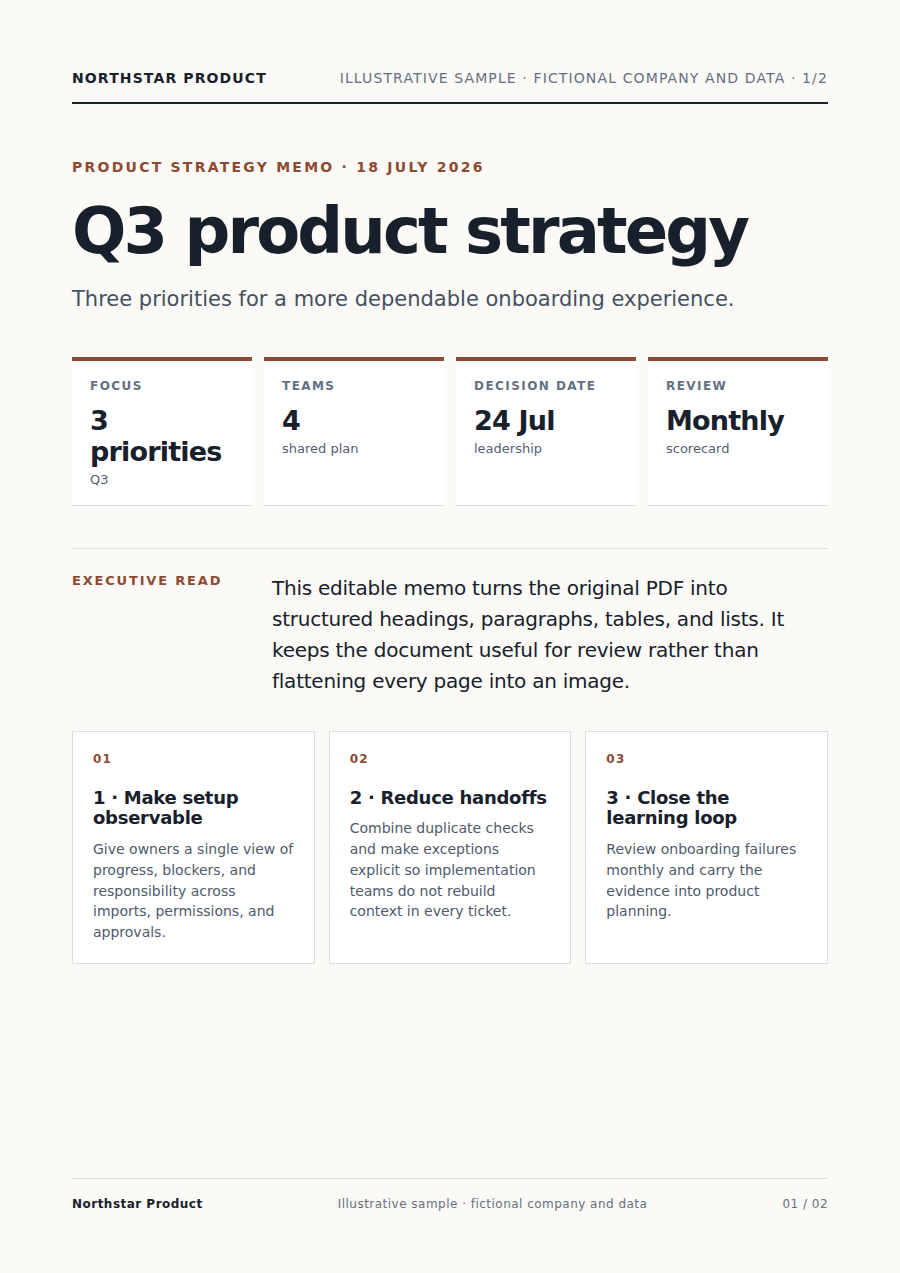
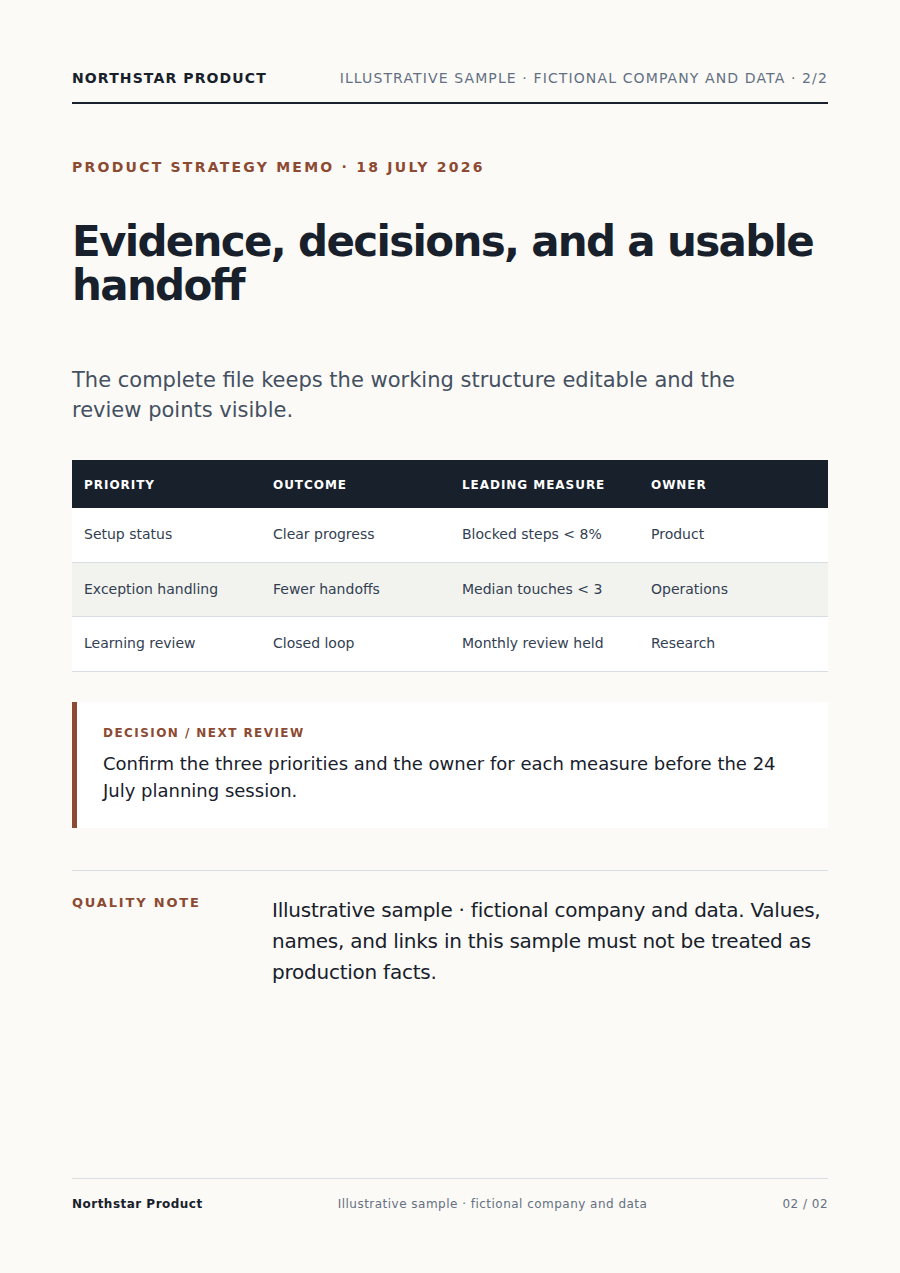
It decides which pages need OCR, recognizes headings, paragraphs, tables, columns, and reading order, then creates an editable Word file and flags anything uncertain.
Read text PDFs directly and run OCR only on scanned pages.
Recognize heading levels, paragraphs, tables, columns, and reading order.
Create the DOCX and flag unclear text or layouts that need a look.
Yes. The Document Assistant can detect image-only pages, run OCR, and rebuild the result page by page. It also flags text that is difficult to recognize instead of silently guessing.
The Agent aims to create native, editable Word tables. Simple tables usually transfer cleanly; nested tables, unusual merged cells, handwriting, and very complex layouts can require a manual check.
This page accepts one PDF up to 30 MB. For a larger or unusually long document, split it into parts or ask the Assistant to help plan a batch workflow.
No converter can guarantee pixel-perfect Word output for every PDF. Missing fonts, complex positioning, forms, handwriting, and damaged scans can change the result. The Assistant highlights likely review points so you can correct them in the same conversation.
Keep working with the same material without moving it between separate products.
Upload a table image, scan, or screenshot. Vecbase reconstructs rows and columns in Excel, normalizes common formats, and marks cells that need review.
Upload a PDF with any terminology preferences and choose the language. Vecbase returns a translated PDF with a readable layout, preserved tables, and flagged uncertainties.
Upload a document, outline, or meeting notes. Vecbase organizes the ideas into a clear, editable mind map and exports SVG, PNG, PDF, and a Markdown outline.
Vecbase
For PDF to Word conversion, add a PDF, explain what matters, and let the Vecbase Agent prepare an editable Word document you can review and refine.